
Access the Content Addition Interface
- Log in to the intranet.
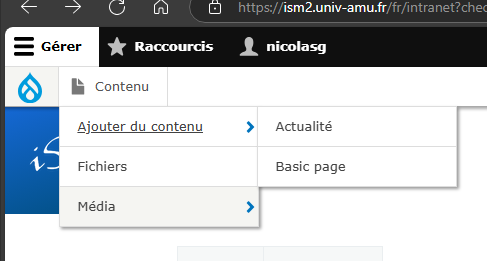
- In the main menu, navigate to Manage > Content > Add Content > News.
Fill in the Main Information
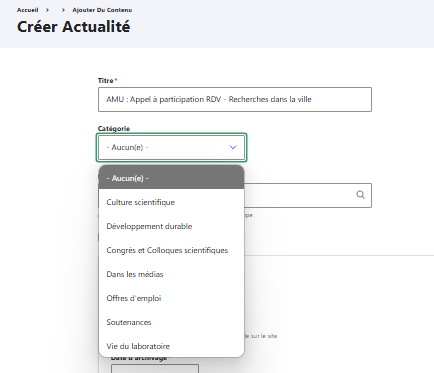
- Title: Enter the title of the news item.
- Category: Select the appropriate category.
Additional Options:
- Team: Display the news item in the team's news section in addition to the general news section.
- Featured News: Check this box to display the news item on the homepage.
Manage Dates
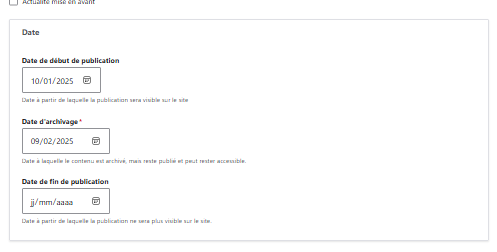
- Start Date of Publication: Enter the start date of publication.
- Note: In the news sections, the most recent publications appear first.
- Archiving Date: Enter the date when the content will be archived but remain published. The news item will appear in the archives section from this date.
- End Date of Publication: Enter the end date of publication. The news item will no longer be visible on the website from this date, or in the archive pages. This field is optional.
Add an Image
- Click "Choose File" to upload an image.
- Image dimensions should be 500 x 300 px.
- Only one media item can be added.
Direct External Link
- Enter the URL of the news item if you are sharing an existing news item on another website (e.g., https://example.com).
- If this field is filled, the visitor will be redirected to the original news website when they click on the news item's teaser in the news list.
- The "Body" field should only contain a short descriptive phrase.
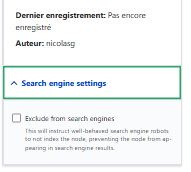
- Recommendation: If the news item serves only as a link to external content, exclude it from search engines by checking the corresponding box in the "Search engine settings" parameters.

Write the News Content
- Summary: If necessary, create a summary that will appear on the news item's teaser. Click on "Summary" and write the desired text if necessary.
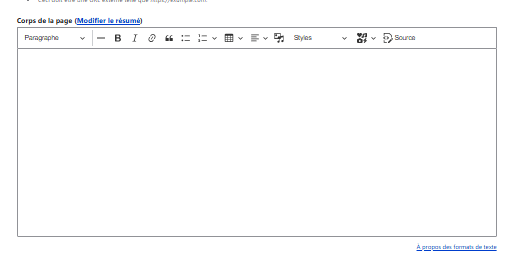
- Body: Write the content of the news item as it will appear on the news item's page. If you have not created a summary, the beginning of the news item will appear as the teaser.
- To draft the news content, use the CKEditor text editor. For detailed instructions on how to use it, please refer to the Text Editor User Guide.
Search Engine Settings
- Search engine settings: If the news item redirects to another page, you can uncheck this option.
- Published: Ensure this option is checked to make the news item visible on the site.
Save
- Click on "Save" to publish the news item.
Translate the News Content
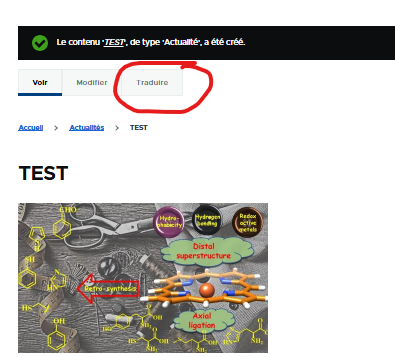
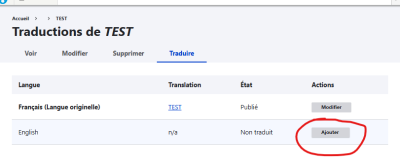
After saving the news item, click on the "Translate" tab and then "Add" to write the translation of the news item in the desired language. This will display the news item in both the French and English versions of the site
Manage News
To learn how to modify or delete news, go to the Manage Content section.